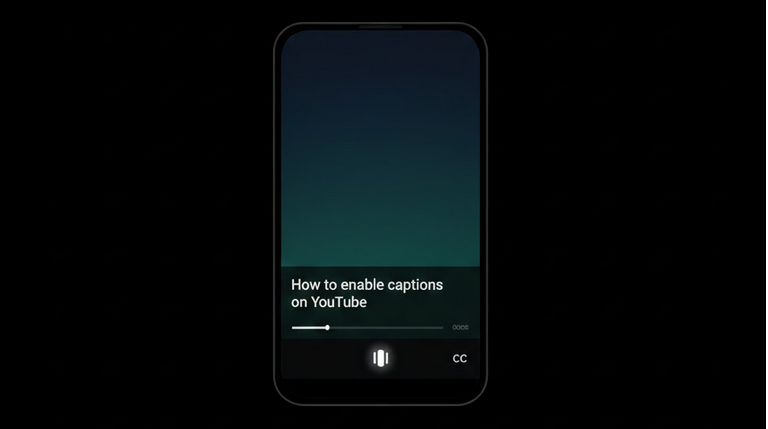
Captions and subtitles make YouTube content accessible to a wider audience. They help viewers who are deaf or hard of hearing, non-native speakers learning a language, and anyone watching in a noisy or quiet environment where audio is not practical. YouTube provides both auto-generated and creator-uploaded captions for millions of videos across the platform.
Types of YouTube Captions
YouTube supports two main types of captions, each with different levels of accuracy and availability.
- Auto-Generated Captions: Created automatically by YouTube’s speech recognition technology. Available on most videos but may contain errors, especially with accents, technical terms, or background noise.
- Manual Captions: Uploaded by the creator or contributed by the community. These are more accurate and include proper punctuation, timing, and formatting.
How to Enable Captions
Turning on captions is quick and works across all YouTube platforms.
- Mobile App: Tap the video, then tap the CC icon in the player controls to toggle captions on or off.
- Desktop Browser: Click the CC button in the bottom-right corner of the video player.
- Smart TV: Use the remote to select the subtitle or CC option within the player menu.
- Default Setting: Go to YouTube Settings, then Captions, and enable Always Show Captions for automatic activation.
Customizing Caption Appearance
YouTube lets you customize how captions look to match your viewing preferences. These settings adjust the visual style without affecting the caption content itself.
- Font Size: Increase or decrease text size for better readability on any screen.
- Font Style: Choose between several font families including serif, sans-serif, and monospace options.
- Text Color: Change caption text color to white, yellow, green, or other options for better contrast.
- Background Color: Adjust the background behind caption text from transparent to fully opaque in various colors.
- Window Color: Set a wider background window around the entire caption block.
- Opacity: Control the transparency of both text and background elements independently.
Captions on YouTube Vanced
YouTube Vanced supports all caption and subtitle features available in the official app. You can enable, disable, and customize captions with the same options. The ad-free experience means captions display cleanly during uninterrupted playback, which is especially important for viewers who rely on subtitles to follow along with content.
With Vanced MicroG syncing your account, your caption preferences carry over from your Google settings. Any customization you apply stays consistent across sessions.
Auto-Translation Feature
YouTube offers an auto-translate function that converts captions into dozens of languages. This feature uses the existing captions (auto-generated or manual) as a base and translates them in real-time. While the translations are not always perfect, they provide a useful approximation for viewers who do not speak the original language. Access this by clicking the gear icon, selecting Subtitles, then Auto-Translate, and choosing your language.
Captions for Language Learning
Captions are a powerful tool for learning new languages. Watching content in a foreign language with native subtitles helps train your ear and build vocabulary simultaneously. You can also use dual subtitle extensions on desktop to display two languages at once, making it easier to match translations with the original dialogue in real-time.
Who Benefits from YouTube Captions
- Hearing-Impaired Viewers: Users who are deaf or hard of hearing and rely on text to follow content.
- Language Learners: Students using subtitles to improve comprehension in a foreign language.
- Quiet Environments: Viewers in libraries, offices, or public transport who cannot use audio.
- Non-Native Speakers: Anyone watching content in a language they understand but do not speak fluently.
- Noisy Environments: Users in loud settings where audio is difficult to hear clearly.
Final Thoughts
Captions and subtitles make YouTube more accessible and versatile for every type of viewer. Enabling and customizing them takes seconds but dramatically improves comprehension and comfort. Using YouTube Vanced ensures your captioned content plays smoothly without ad interruptions, keeping your focus on the text and the content it accompanies.